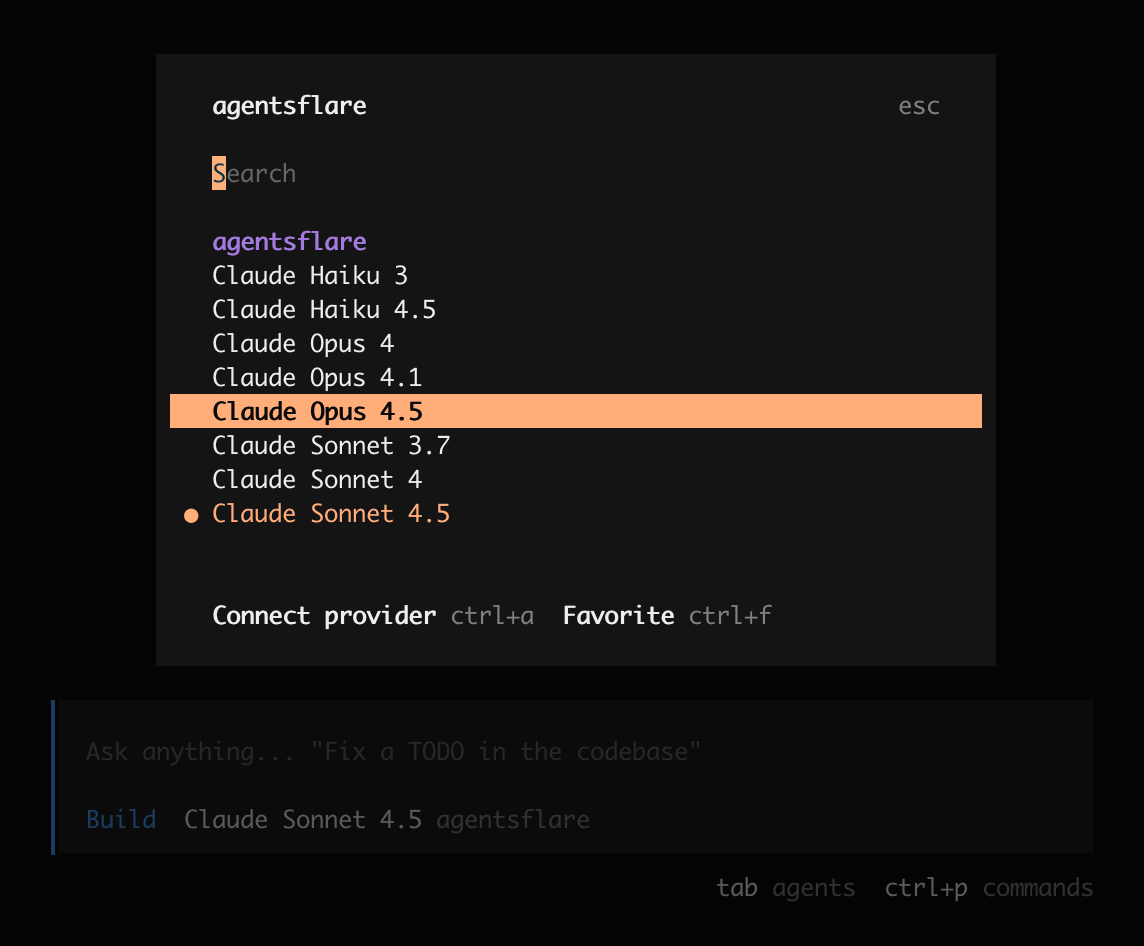
Agentsflare Opencode Configuration Solution
Opencode Opencode is a very popular coding agent similar to Claude Code.
Install and Configure Opencode
Install Opencode
- Install using curl
bash
curl -fsSL https://opencode.ai/install | bash- npm installation
bash
npm install -g opencode-aibash
bun install -g opencode-aibash
pnpm install -g opencode-aibash
yarn global add opencode-ai- Mac installation
bash
brew install opencode-ai- For other installation methods, see Opencode Installation Documentation
Configure Opencode
- Automatic configuration
bash
curl -fsSL https://agentsflare-public.obs.ap-southeast-3.myhuaweicloud.com/agentsflare-opencode-config-install.sh | bash- Manual configuration Edit the content of ~/.config/opencode/opencode.json and add the following:
json
{
  "$schema": "https://opencode.ai/config.json",
  "provider": {
    "agentsflare": {
      "npm": "@ai-sdk/openai-compatible",
      "name": "agentsflare",
      "options": {
        "baseURL": "https://api.agentsflare.com/v1"
      },
      "models": {
        "claude-sonnet-4-5-20250929": {
          "name": "Claude Sonnet 4.5",
          "limit": {
            "context": 200000,
            "output": 64000
          },
          "modalities": {
            "input": ["text", "image"],
            "output": ["text"]
          }
        },
        "claude-opus-4-5-20251101": {
          "name": "Claude Opus 4.5",
          "limit": {
            "context": 200000,
            "output": 64000
          },
          "modalities": {
            "input": ["text", "image"],
            "output": ["text"]
          }
        },
        "claude-sonnet-4-20250514": {
          "name": "Claude Sonnet 4",
          "limit": {
            "context": 200000,
            "output": 64000
          },
          "modalities": {
            "input": ["text", "image"],
            "output": ["text"]
          }
        },
        "claude-opus-4-20250514": {
          "name": "Claude Opus 4",
          "limit": {
            "context": 200000,
            "output": 32000
          },
          "modalities": {
            "input": ["text", "image"],
            "output": ["text"]
          }
        },
        "claude-3-7-sonnet-20250219": {
          "name": "Claude Sonnet 3.7",
          "limit": {
            "context": 200000,
            "output": 64000
          },
          "modalities": {
            "input": ["text", "image"],
            "output": ["text"]
          }
        },
        "claude-opus-4-1-20250805": {
          "name": "Claude Opus 4.1",
          "limit": {
            "context": 200000,
            "output": 32000
          },
          "modalities": {
            "input": ["text", "image"],
            "output": ["text"]
          }
        },
        "claude-haiku-4-5-20251001": {
          "name": "Claude Haiku 4.5",
          "limit": {
            "context": 200000,
            "output": 64000
          },
          "modalities": {
            "input": ["text", "image"],
            "output": ["text"]
          }
        },
        "claude-3-haiku-20240307": {
          "name": "Claude Haiku 3",
          "limit": {
            "context": 200000,
            "output": 4096
          },
          "modalities": {
            "input": ["text", "image"],
            "output": ["text"]
          }
        }
      }
    },
    "agentsflare-codex": {
      "npm": "@ai-sdk/openai",
      "name": "agentsflare-codex",
      "options": {
        "baseURL": "https://api.agentsflare.com/v1"
      },
      "models": {
        "gpt-5-mini": {
          "name": "gpt-5-mini",
          "limit": {
            "context": 128000,
            "output": 128000
          },
          "modalities": {
            "input": ["text", "image"],
            "output": ["text"]
          }
        }
      }
    }
  },
  "model": "agentsflare/claude-sonnet-4-5-20250929"
}
Configure Opencode Provider Key
- Run the command
bash
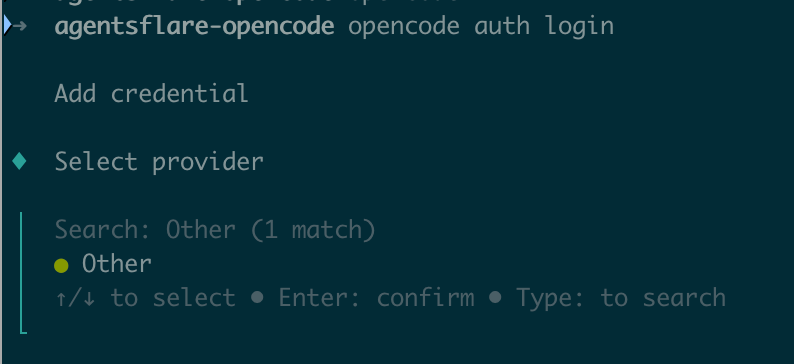
opencode auth loginTab switch search, enter Other.
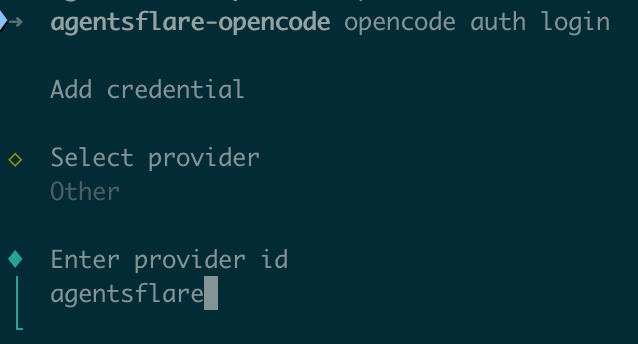
Enter custom provider ID: agentsflare
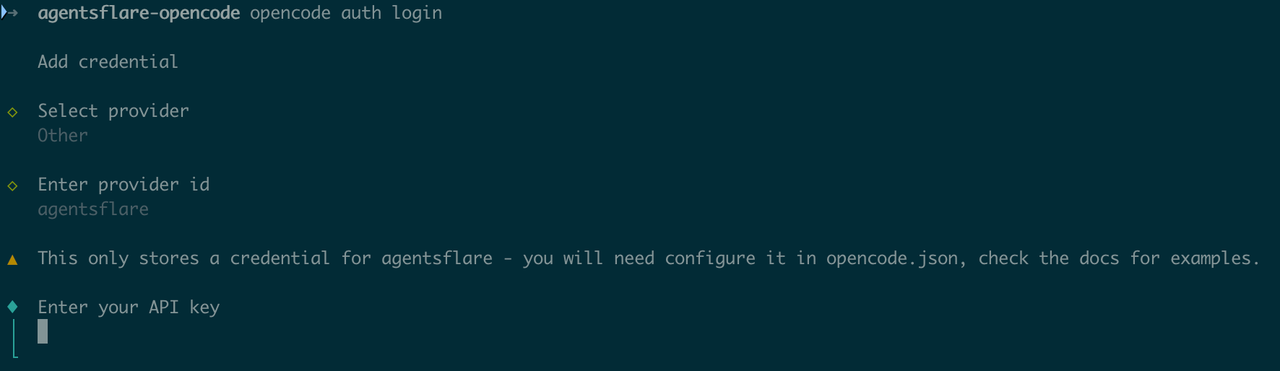
Copy and paste one of the API Keys from your Agentsflare console to complete authentication.
Use Agentsflare Provider
- Enter the opencode console
bash
opencode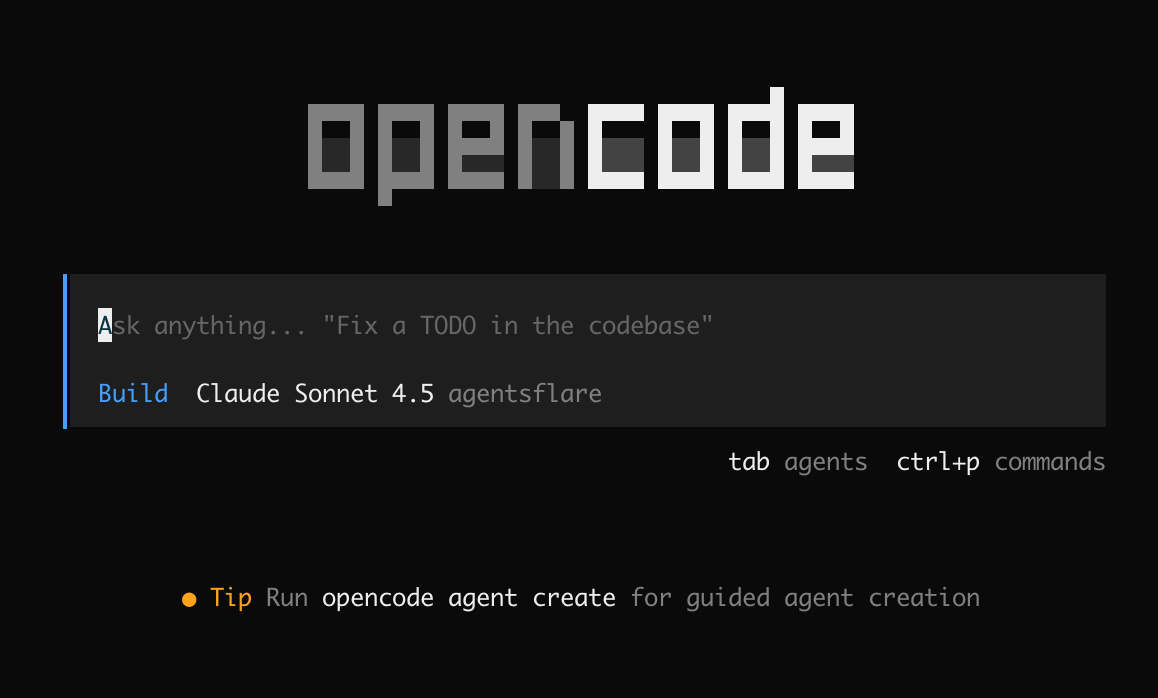
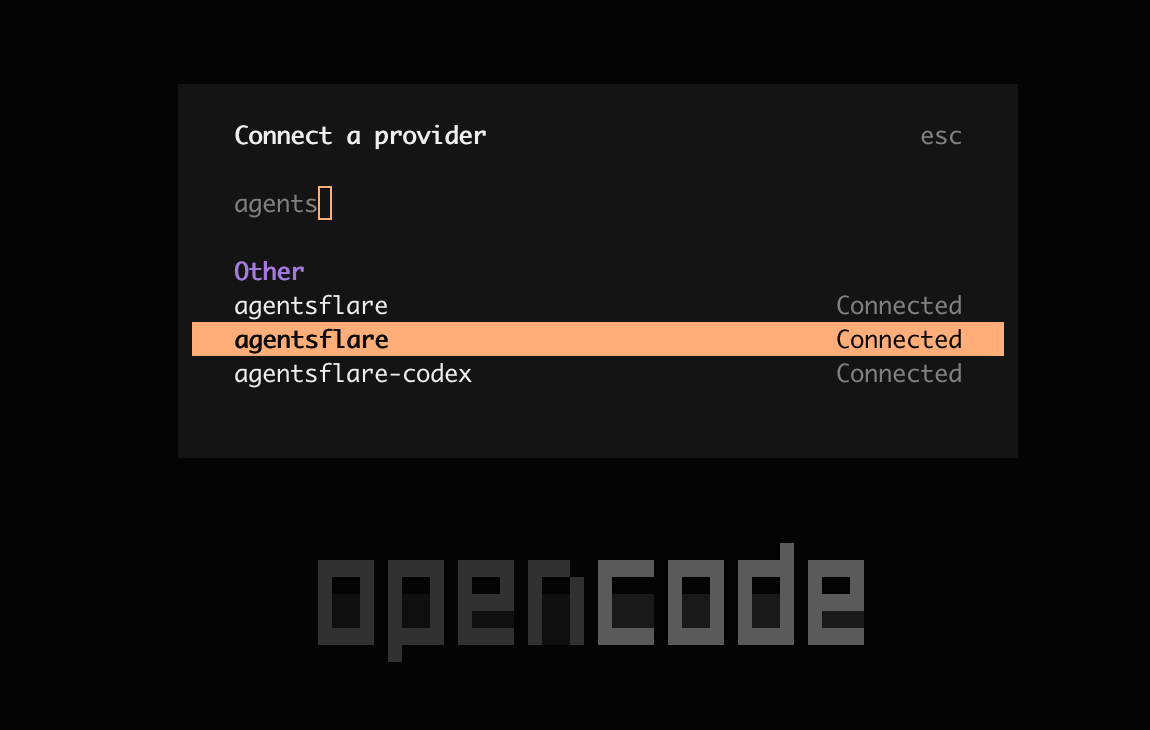
Connect provider Enter /connect and press enter, then in the pop-up input box select agentsflare or enter agentsflare in the filter
 Then enter the API Key again to complete connecting the provider.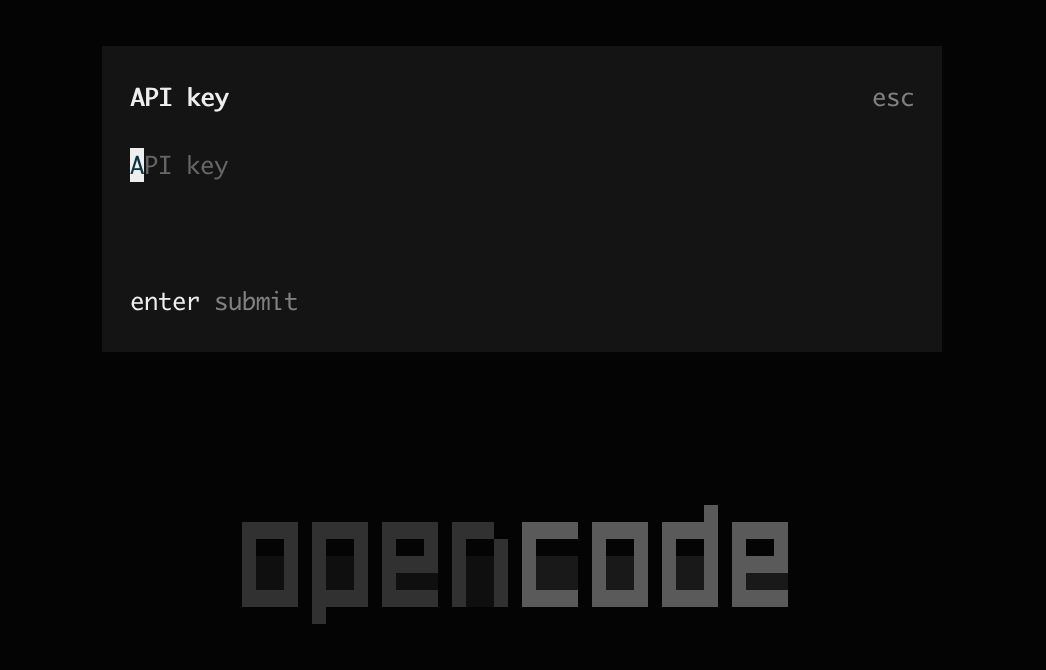
Configuration complete, select the model you want to use to start using